
 REMIT Relax
Documentation
Guidance on the usage of REMIT Relax.
History & Downloads
The History page gives you an overview of your most recently generated reports. From there you can download the ACER XML or Excel file for any past report, or copy it as the starting point for a new one.
REMIT Relax is not intended to be a document archive. The History section automatically cleans up files after 6 months, so please ensure that a copy of reported files is stored securely in your own environment, to which you can refer.
About the History Page
The History page contains all recently processed reports of an organization.
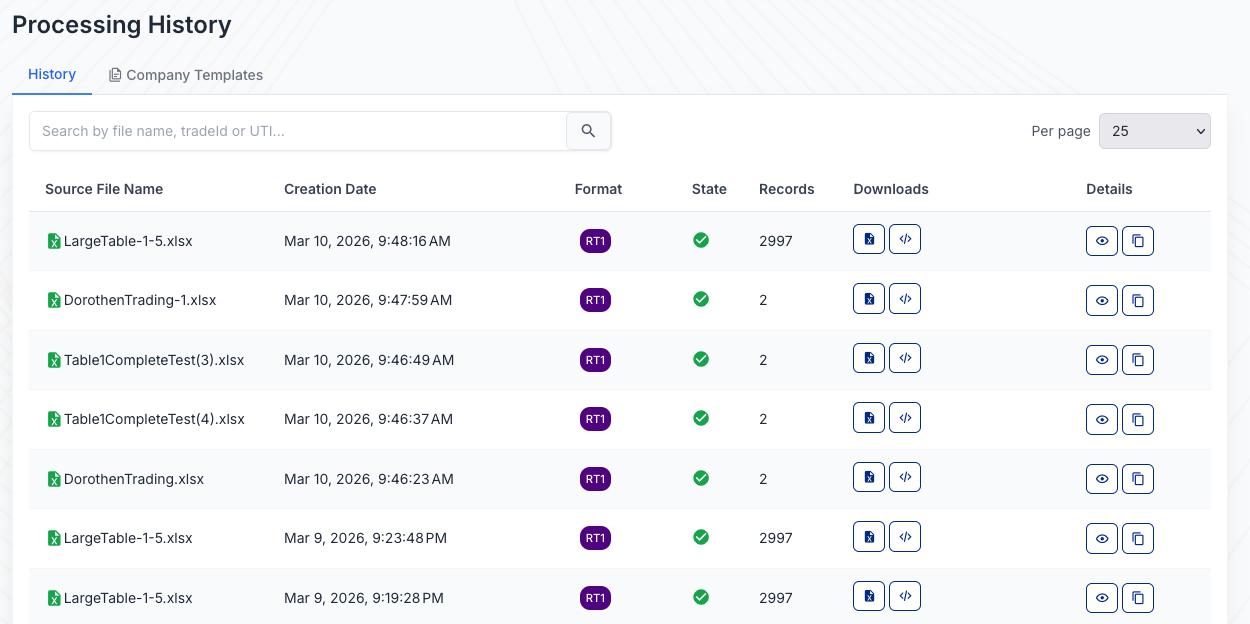
- You can filter reports by searching for the file name, Trade ID, or UTI—helpful for finding a specific processed trade within a report, since one uploaded Excel file can contain multiple trades, for example when only the UTI or Trade ID is known.
- You can download recently processed files directly from this page: both the generated ACER XML file and the Excel template that was used.
- If a trade has not yet been processed, the processing job can be retriggered from the History page—in that case, a process icon is shown in the trade's row.
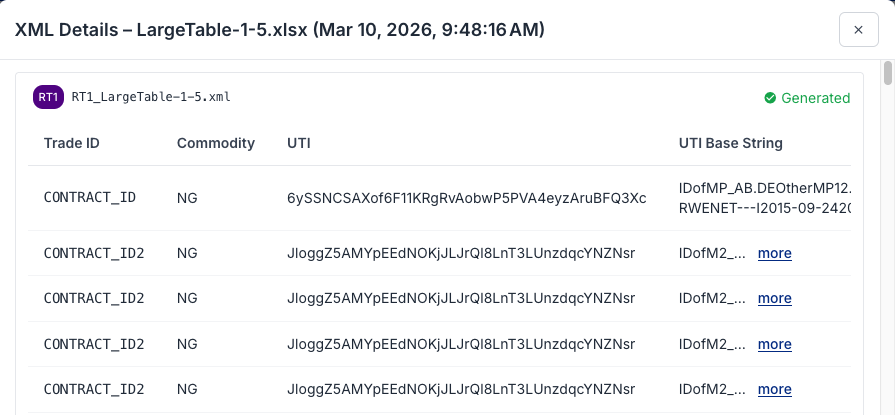
- Every processed trade has a Details button. Clicking it shows additional details of the generated record, including the Trade IDs, Commodity, the UTI, and the UTI base string used to generate it—helping you understand how the UTI was generated and which values were used.
- To reuse a recently processed report, simply copy and open it (see Using the Online Editor).
- The State column shows the processing state. If a report failed to process, hovering over the state shows the reason.